How to Connect Apple CarPlay in Jeep Grand Cherokee (Wired & Wireless Guide)

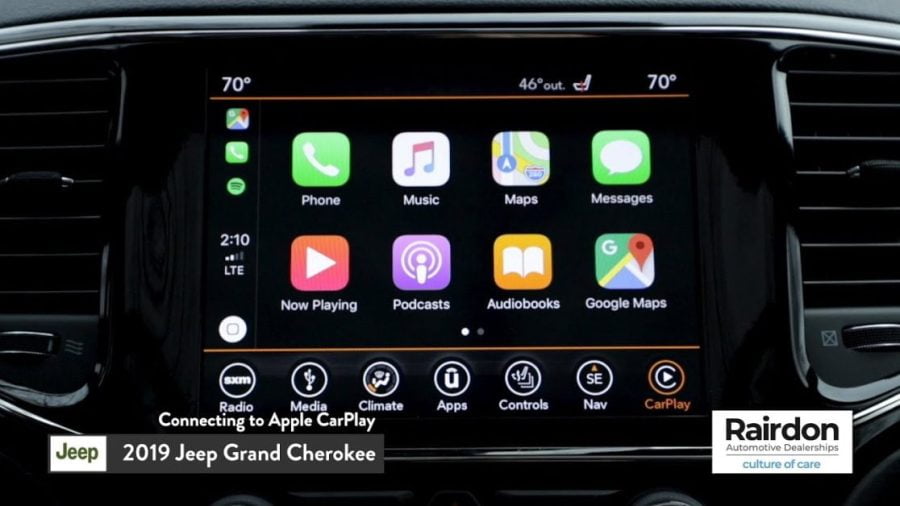
Setting up Apple CarPlay in your Jeep Grand Cherokee is a straightforward process that transforms your driving experience by seamlessly integrating your iPhone with the vehicle’s Uconnect infotainment system. Most 2018 and newer Grand Cherokee models support both wired USB and wireless CarPlay connections, depending on your specific Uconnect system version.
Before diving into the setup process, ensure your iPhone runs iOS 7.1 or later (compatible with 90% of current iPhones) and that Siri is enabled in your device settings. Your Grand Cherokee must be a 2018 or newer model year to support Apple CarPlay functionality.
| Model Year | Wired CarPlay | Wireless CarPlay | Uconnect Version |
|---|---|---|---|
| 2018-2020 | ✓ | Limited | Uconnect 4/4C |
| 2021-2025 | ✓ | ✓ | Uconnect 5 |
This comprehensive guide covers both connection methods, troubleshooting tips, and best practices to ensure optimal performance with your Jeep Grand Cherokee’s infotainment system.
Check Compatibility and Prepare Your Jeep Grand Cherokee
First, confirm your Grand Cherokee model year and Uconnect system version. Look for the Uconnect logo on your infotainment screen—Uconnect 5 systems (found in 2021+ models) feature a more modern interface with larger icons and improved may have limited or no wireless capability.
Uconnect System Versions
Uconnect 4 systems are identifiable by their traditional grid-style menu layout, while Uconnect 5 features a more smartphone-like interface with customizable widgets and enhanced graphics. Check your system version by navigating to Settings > System Information on your infotainment display.
Required iPhone Settings
Enable Siri by going to Settings > Siri & Search on your iPhone, then toggle on “Listen for ‘Hey Siri'” and “Press Side Button for Siri.” Also, ensure Bluetooth is enabled in your iPhone’s settings. Locate the USB ports in your Grand Cherokee’s center console—look for the port specifically labeled with a phone icon or CarPlay symbol.
Wired Apple CarPlay Connection (Step-by-Step)
Wired connection offers the most reliable CarPlay experience and works with all compatible Grand Cherokee models. This method also charges your iPhone while connected.
- Start your vehicle and ensure the Uconnect system is fully loaded
- Use a certified Lightning cable to connect your iPhone to the designated USB port in the center console (avoid generic cables as they cause 40% of connection failures)
- Allow connection prompts on both your Uconnect display and iPhone screen
- Select “Enable” or “Use CarPlay” when prompted on the infotainment screen
- Confirm on your iPhone by tapping “Use CarPlay” if a pop-up appears
- Access CarPlay through the CarPlay icon on your Uconnect home screen
The CarPlay interface vehicle’s display. You’ll see Apple Maps, Phone, Messages, Music, and any other CarPlay-compatible apps you have installed.
Troubleshooting Wired Issues
If CarPlay doesn’t appear, try these solutions:
- Restart both your iPhone and vehicle infotainment system
- Try a different Lightning cable (use only Apple-certified cables)
- Check that the USB port is clean and free of debris
- Ensure your iPhone is unlocked during initial setup
- Verify iOS version compatibility
Remember, cheap adapters and non-certified cables are common culprits in connection failures. Invest in quality cables for consistent performance.
Set Up Wireless Apple CarPlay Pairing
Wireless CarPlay provides ultimate convenience, automatically connecting when you enter the vehicle. This feature is primarily available on 2021+ Grand Cherokee models with Uconnect 5.
- Press the Phone icon on your Uconnect display
- Select “Add Device” or “Pair Device”
- Enable Bluetooth discovery on your iPhone (Settings > Bluetooth)
- Select your Jeep Grand Cherokee from the available devices on your iPhone
- Match the PIN codes displayed on both screens
- Accept CarPlay prompts when they appear on both devices
- Configure auto-connection in iPhone Settings > General > CarPlay
- Enable Wi-Fi auto-join for your Jeep’s network in iPhone Wi-Fi settings
After initial setup, your iPhone should automatically connect to CarPlay when you start the vehicle, provided Bluetooth and Wi-Fi are enabled on your device.
Steering Wheel Voice Button Method
You can also initiate wireless pairing by pressing and holding the voice command button on your steering wheel, then saying “-free method is particularly useful during the initial setup process.
Using Apple CarPlay on the Jeep Grand Cherokee Infotainment
Once connected, CarPlay transforms your Uconnect system into an extension of your iPhone. The interface mirrors your phone’s layout while optimizing controls for safe driving.
Navigate using the touchscreen or steering wheel controls. Apple Maps integration provides turn-by-turn directions that appear both on the main display and in your instrument cluster. Access music through Apple Music, Spotify, or other compatible streaming apps.
Use Siri by pressing the voice command button on your steering wheel or saying “Hey Siri” if that feature is enabled. Siri can read and send text messages, make calls, provide directions, and control music playback without taking your hands off the wheel.
Voice Commands with Uconnect
The steering wheel voice button activates Siri when CarPlay is active, providing seamless voice control. You can say commands like “Navigate to [destination],” “Play [song/artist],” or “Read my messages” for hands-free operation. This integration ensures you maintain focus on the road while accessing your phone’s functionality.
Troubleshooting Common Jeep Grand Cherokee CarPlay Problems
Even with a proper setup, you may occasionally encounter CarPlay issues. Here are solutions to the most common problems:
CarPlay not detected: Restart your iPhone and cycle the vehicle’s ignition. Check cable connections for wired setups, and verify Bluetooth pairing for wireless connections.
Wireless connection drops: Re-pair your devices by forgetting the Bluetooth connection on both your iPhone and Uconnect system,-join is enabled for your Jeep’s network.
Audio issues: Check volume levels on both your iPhone and Uconnect system. Some apps require separate volume adjustment within the app itself.
Slow performance: Close unnecessary apps on your iPhone and ensure adequate storage space. Consider restarting your phone if CarPlay becomes sluggish.
Update Uconnect Software
Keep your Uconnect system updated by checking Settings > System Information > Software Updates. Some updates can be downloaded over Wi-Fi, while others may require a dealership visit. Updated software often resolves compatibility issues and improves performance.
Reset Connections
If persistent issues occur, reset all CarPlay connections by going to iPhone Settings > General > CarPlay and removing your vehicle. Then re-establish the connection using either wired or wireless methods. This process clears any corrupted pairing data.
Pro Tips and Best Practices for Optimal Performance
Maintain optimal CarPlay performance by keeping both your iPhone iOS and Uconnect software updated. Use only Apple-certified Lightning cables for wired connections, as generic cables frequently cause connectivity issues.
Disable VPN connections on your iPhone while using CarPlay, as they can interfere with the wireless connection process. If your Grand Cherokee doesn’t support CarPlay natively, aftermarket solutions are available, though they may require professional installation.
For the best wireless experience, ensure your iPhone battery remains adequately charged, as wireless CarPlay uses more power than wired connections. Consider how to install a Tesla charger at home for insights on reliable power solutions, or explore other Jeep customization options like Jeep Wrangler lift kits to enhance your overall driving experience.
If you’re experiencing broader vehicle issues, such as those covered in our Jeep Compass limp mode guide, addressing underlying electrical problems may also improve CarPlay functionality.
FAQ
Does the 2022 Grand Cherokee support wireless CarPlay?
Yes, all 2022 and newer Grand Cherokee models with Uconnect 5 support both wired and wireless Apple CarPlay connections.
What should I do if CarPlay won’t connect?
First, ensure your iPhone runs iOS 7.1 or later and try restarting both devices. Check cable quality for wired connections and re-pair Bluetooth for wireless setups.
Can I use CarPlay while my phone is in my pocket?
With wireless CarPlay, yes. Once paired, your iPhone can remain in your pocket or bag and will automatically connect when you start the vehicle.
Why does wireless CarPlay keep disconnecting?
Common causes include weak Wi-Fi signals, a low iPhone battery, or outdated software. Ensure both your iPhone and Uconnect system have the latest updates installed.
Is there an alternative if my Grand Cherokee doesn’t support CarPlay?
Consider Android Auto if your system supports it, or explore aftermarket CarPlay adapters that can add functionality to older Uconnect systems.
Final Thoughts
Connecting Apple CarPlay to your Jeep Grand Cherokee enhances safety and convenience by seamlessly integrating your iPhone’s functionality with your vehicle’s infotainment system. Whether using wired or wireless connections, following these step-by-step instructions ensures a smooth setup process and optimal performance for your daily drives.