
How to Play Spotify in Your Tesla: Complete Guide to Setup, Features & Troubleshooting

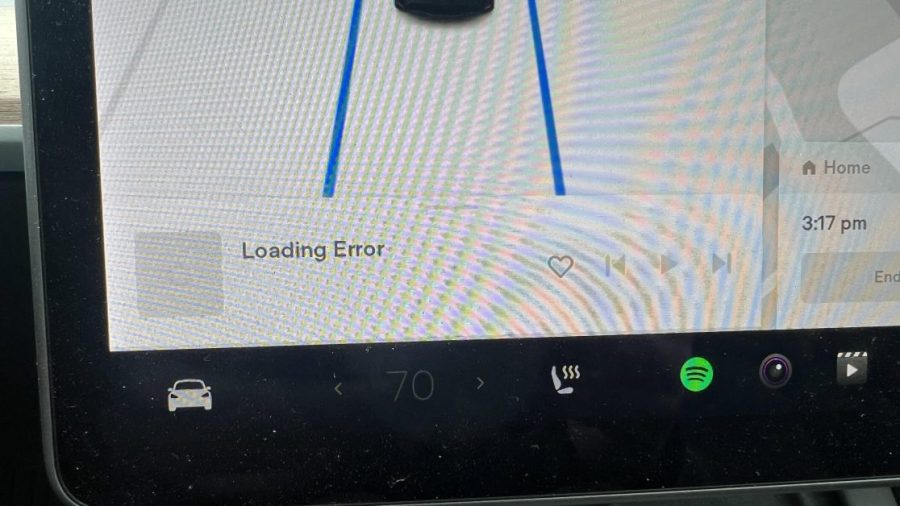
Spotify and Tesla create a seamless in-car entertainment experience when properly set up. This guide walks you through every method to stream your favorite music, from the built-in app integration to Bluetooth alternatives, accounting for recent changes to Premium Connectivity.
| Preview | Product | |
|---|---|---|
|
Wireless CarPlay for Tesla Original Car Screen Interconnection Box, Compatible with Tesla S, X… | Check Price |
Setting Up Spotify in Your Tesla: Quick Start
Playing Spotify in your Tesla requires just three simple steps if you have a Premium subscription and active Premium Connectivity.
First, locate the Media section on your Tesla’s touchscreen. Tap the app menu icon at the bottom (usually marked with three dots) and select Spotify from the available apps list. If Spotify isn’t displayed, you can manually add it by finding it in the complete apps menu and dragging it to your main shortcuts.
Second, scan the QR code displayed on your Tesla screen with your smartphone camera. This initiates a secure login without typing credentials manually. Alternatively, you can enter your Spotify Premium username and password directly.
Third, grant Tesla permission to access your Spotify account. The system will confirm the connection, and your vehicle becomes a streaming device. You can now browse playlists, albums, and artists directly from your car’s dashboard.
Recent updates as of December 2024 require a personal Spotify Premium account. Tesla previously bundled Spotify Premium with Premium Connectivity, but discontinued this arrangement starting December 1, 2024. Vehicles delivered after October 1, 2024, no longer include free Spotify Premium access.
Premium Connectivity vs. Spotify Without It: Understanding Your Options
Premium Connectivity provides the data connection necessary for streaming Spotify through Tesla’s built-in cellular network. This subscription costs approximately $9.99 monthly and delivers the most seamless experience with wireless streaming, voice controls, and full app access.
However, Premium Connectivity is not the same as a Spotify subscription. Even with Premium Connectivity active, you must maintain your own Spotify Premium account to use the in-car app with full features.
What Premium Connectivity includes:
- Wireless Spotify streaming over LTE/5G networks
- Voice-activated song search and playback
- Real-time playlist browsing and artist navigation
- High-quality audio streaming (average 160 kbps bitrate)
- Personalized AI-powered playlists based on driving conditions
- Access to audiobooks in the Spotify app (as of March 2025 updates)
Without Premium Connectivity, you have three practical alternatives. The Bluetooth method connects your phone to Tesla wirelessly, allowing phone-based Spotify playback through your car speakers. This works with Spotify Free accounts, but eliminates the dashboard interface convenience.
The mobile hotspot method tethers your Tesla to your phone’s personal hotspot, enabling the built-in Spotify app to stream without Premium Connectivity. Simply connect your vehicle’s Wi-Fi to your phone’s hotspot and open the Tesla Spotify app—your phone’s mobile data carries the stream.
The USB method downloads Spotify songs as MP3 files using third-party converters like AudiFab or Sidify, then transfers them to a USB drive. Insert the USB into your Tesla’s front glove box port, navigate to Media > USB, and play your offline library. This method provides zero-latency playback and works on all Tesla models.
Credit: www.teslarati.com
Browsing, Searching & Playing Music in Your Tesla
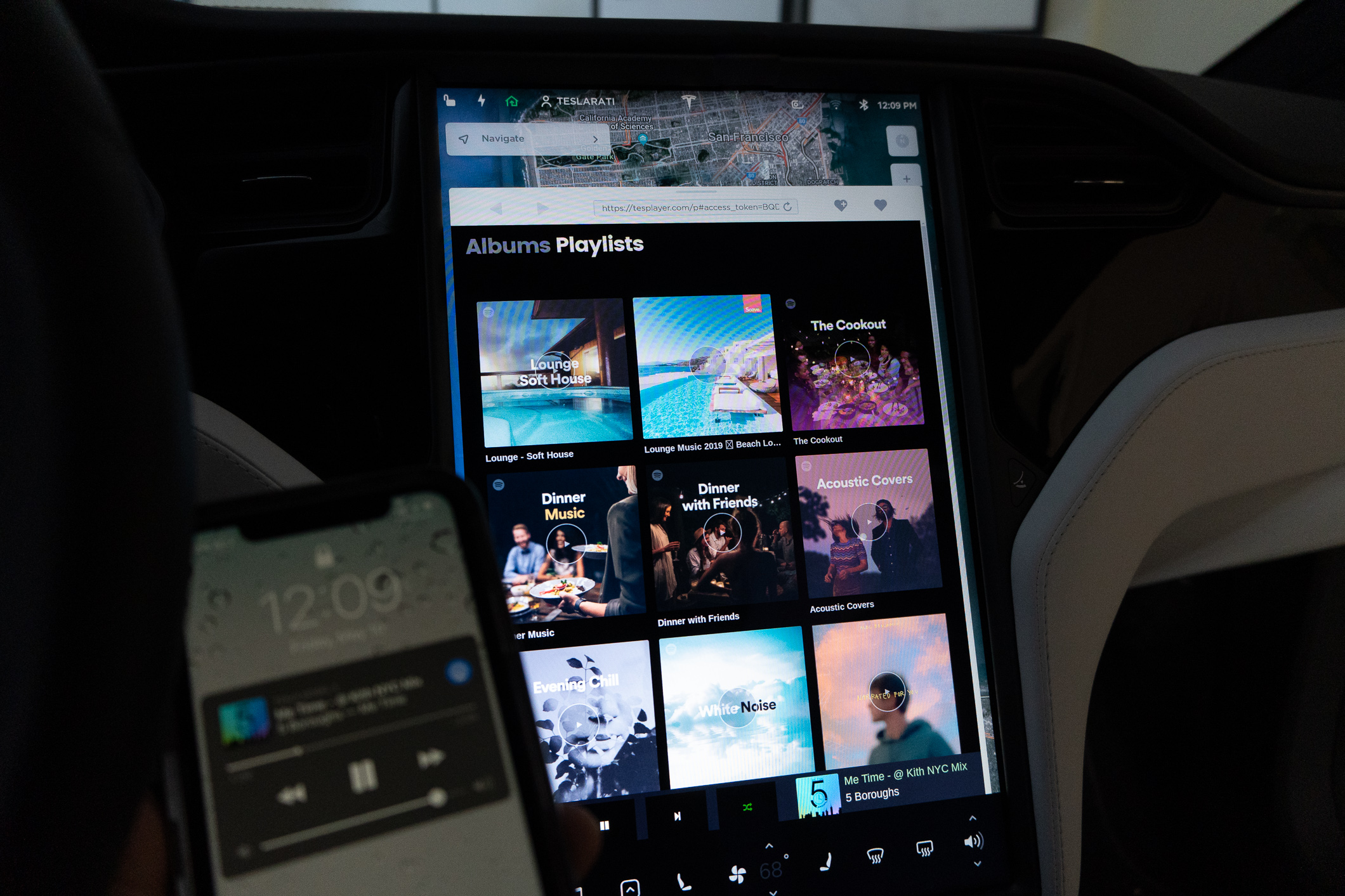
Spotify’s Tesla app provides multiple ways to find and play content. Your library displays saved playlists, recently played tracks, and favorite artists immediately upon opening the app. Tap any playlist or artist to browse available content before selecting a specific track.
The search function lets you find songs, albums, artists, genres, or moods by typing into the on-screen keyboard. Start typing the first few letters of your search term—Spotify’s autocomplete suggests matches as you type. Once results appear, tap a song to play immediately, or tap an artist’s name to browse their complete discography.
Voice commands offer the quickest method while driving. Press and hold the microphone button on your right steering wheel spoke. When a chime sounds, say commands like “Play [song name] on Spotify” or “Play [artist name].” Tesla’s enhanced voice recognition translates natural language into Spotify actions, though voice search sometimes triggers a keyboard interface requiring manual navigation.
The touchscreen scroll wheel controls volume and playback. Scroll up to increase volume, scroll down to decrease, press the center to pause/play, and press right to skip forward or left to skip backward.
A recent feature update (Tesla 2025 Holiday Update) allows adding Spotify tracks directly to your queue from the search screen. This eliminates the need to play songs individually. You can also scroll through large Spotify playlists, albums, and audiobooks without page-by-page navigation, improving the browsing experience significantly.
Understanding Spotify Audio Quality in Your Tesla
Spotify transmits music to your Tesla at varying bitrates depending on connection quality and available bandwidth. Testing shows the in-car app streams at average bitrates between 128 kbps and 160 kbps, though individual songs can range from 96 kbps to 320 kbps.
This compares favorably to Apple Music in Tesla (averaging 118 kbps) but significantly trails Tidal’s lossless streaming (averaging 1,165 kbps). For typical car audio systems, the difference between Spotify’s 160 kbps and higher bitrates remains subtle due to road noise and speaker limitations.
To maximize quality, ensure a strong LTE or 5G connection—Premium Connectivity subscribers receive dedicated Tesla SIM prioritization. When the cellular signal weakens, the bitrate automatically reduces to maintain uninterrupted playback, sometimes dropping below 100 kbps in low-coverage areas.
Bluetooth streaming from your phone bypasses Tesla’s infrastructure, potentially offering superior sound quality because some users report higher effective bitrates when streaming through Bluetooth. If audio quality concerns you, testing Bluetooth playback against the built-in app reveals whether your Tesla’s speaker system differentiates between these bitrates.
Using Spotify Connect for Multi-Device Control
Spotify Connect transforms your Tesla into a speaker you control from your phone’s Spotify app, enabling playlist management without touchscreen interaction. This feature eliminates the need for keyboard input while driving.
Connect to the same Wi-Fi network as your Tesla, open Spotify on your phone, and tap the speaker icon in the Spotify app (typically in the bottom-left corner on iOS or in the now-playing bar). Your Tesla appears in the available devices list. Select it to begin streaming from your phone through your car’s speakers.
This method works with Spotify Free accounts if you’re using Bluetooth, though Premium accounts unlock additional Spotify Connect features. You maintain complete phone-side control of playlists, shuffle, repeat, and volume adjustments.
Solving Common Spotify Issues in Tesla
Spotify stops playing abruptly when the internet connection drops, Tesla software becomes outdated, or your Spotify account encounters login problems. Before troubleshooting, verify a stable internet connection by opening another app like Netflix—if it works, Spotify itself requires attention.
Log out and back into your account. Navigate to the Spotify app on your Tesla, access account settings, and select logout. Wait 30 seconds, then log back in using your credentials. This clears minor glitches preventing playback.
Update your software. Tesla and Spotify release regular updates addressing app stability. Check your vehicle’s Controls menu for available software updates. Similarly, verify Spotify is updated to the latest version through your phone’s app store. Outdated versions often malfunction with new Tesla firmware.
Reset the infotainment system. Press and hold both scroll wheels on your steering wheel for 10 seconds until the screen goes black. Wait 1-2 minutes for the system to restart. This comprehensive reset frequently resolves persistent Spotify errors without affecting other vehicle settings.
Restart your Tesla vehicle. Navigate to Controls > Safety > Power Off, wait two minutes (the car doesn’t completely power down), then press the brake pedal to restart. This differs from a simple reboot and addresses deeper system conflicts.
Switch to mobile hotspot temporarily. If Spotify won’t stream over Premium Connectivity, enable your phone’s personal hotspot and connect your Tesla to it. This tests whether your vehicle’s cellular connection or the Spotify integration itself caused the failure. If the hotspot works, contact Tesla Support about potential modem issues.
Try a different Spotify subscription plan. Some users resolved playback issues by switching from individual plans to family or duo accounts. Log into your Spotify account online, downgrade to a Free account temporarily, wait 24 hours, then upgrade again. This resets your account status within Tesla’s system.
Check the Spotify QR code method. If the QR code won’t scan, ensure your phone and Tesla connect to the same Wi-Fi network. Restart both devices and verify the Spotify app is fully updated before trying again. If this persists, manually enter your login credentials instead of scanning.
Maximizing Your Spotify Experience: Advanced Tips
Organize your playlists before driving. Create mood-based or genre-specific playlists on Spotify’s web or mobile app, then access them instantly in your vehicle. Tagging playlists with descriptive names helps the voice search function recognize them faster.
Use Spotify’s “Add to Queue” feature (available in recent updates) to build a continuous song queue without manually selecting each track. Search for a song, tap it, and add it directly to your current queue—no playlist required.
Rate your music during drives to train Spotify’s algorithm. Liking or disliking songs on Tesla remains challenging without exiting car mode, but when parked, toggle car mode off to access the full Spotify interface and heart your favorite tracks. Spotify learns from these ratings to generate more personalized recommendations over time.
Enable offline downloads on your phone’s Spotify app, then use Bluetooth to extend playback through areas with poor coverage. While the Tesla app lacks native offline capability, phone-based streaming combined with Bluetooth covers most scenarios where connectivity drops.
Take advantage of personalized playlists. Spotify generates AI-driven playlists for Teslas, adapting content based on driving route, time of day, and mood data. These recommendations improve as the algorithm learns your preferences, potentially introducing songs you’ll love during long commutes.
Spotify Free Account Access in Tesla (Recent Changes)
Starting with Tesla software update 2024.38, Spotify Free accounts gained support in North American Tesla vehicles, though with limitations. Free subscribers experience ad interruptions during playback, cannot skip certain songs, and lack precise track selection compared to Premium subscribers.
In Europe and Oceania, the previous bundled Spotify Premium with Premium Connectivity ended December 1, 2024. Existing subscribers must now link personal accounts or upgrade to Spotify Premium individually.
Vehicles delivered before July 2019 retain perpetual Premium Connectivity, including Spotify Premium, until hardware becomes obsolete (typically when 4G networks sunset). Vehicles delivered between July 2019 and September 30, 2024, received complimentary Spotify Premium with Premium Connectivity through December 1, 2024—after which they revert to Free or require personal Premium subscriptions.
Alternative Music Streaming Options for Tesla
Apple Music streams through Tesla with Premium Connectivity, requiring a separate Apple Music subscription. Audio quality averages 118 kbps, making it the lowest-quality option among the three major services. However, if you’re already an Apple Music subscriber with premium connectivity, the integration provides convenient access.
Tidal High Fidelity delivers the best audio quality in Tesla, streaming at an average of 1,165 kbps. The tradeoff is cost—Tidal subscriptions run roughly $20 monthly for the HiFi tier. If premium sound quality during drives justifies the expense, Tidal audiophiles consistently report measurable improvements over Spotify and Apple Music.
TuneIn Radio provides sports, talk, and news stations without Premium Connectivity. While not a music-focused service, it fills gaps when Spotify feels repetitive. The service includes ad-supported stations or a paid subscription tier for ad-free listening.
Slacker (now LiveOne) remains Tesla’s default music service in some regions, though Spotify’s integration has largely superseded it. LiveOne/Slacker offers similar functionality to Spotify but with a smaller music library and less sophisticated recommendation algorithms.
Final Thoughts
Streaming Spotify in your Tesla transforms daily commutes into customized audio experiences. The built-in app integration, when Premium Connectivity is active, remains the smoothest method. Recent updates delivering audiobooks and queue management continue improving the platform’s convenience.
For those without Premium Connectivity or seeking the best audio quality, Bluetooth playback, and alternative services like Tidal offer compelling alternatives. The USB offline method provides zero-latency playback for road trips through dead zones.
Troubleshooting Spotify problems typically involves simple resets and account re-authentication rather than complex technical interventions. When issues persist, Premium Connectivity subscribers benefit from Tesla’s technical support team, while Bluetooth users retain flexibility through their smartphone’s native Spotify interface.
Start with your preferred playback method, familiarize yourself with Tesla’s voice controls, and refine your approach based on real-world driving patterns. Spotify in Tesla works best when your setup matches your actual usage patterns rather than forcing one method for every scenario.