Tesla Light Show Downloads: How to Find, Install, and Play Custom Shows

Here’s the short version: download a show package, format a USB drive to exFAT, create a folder called LightShow at the root, drop in the files, plug it into your Tesla, and launch it from Toybox. That’s it. But the details matter enormously — one wrong folder name and the show won’t appear at all.
This guide walks you through every step, including where to find reliable downloads, exactly how to structure your files, and how to fix the most common problems Tesla owners run into.
Where to Find Tesla Light Show Downloads
Two main types of sources exist: community repositories and creator-shared packages. Both work well. Quality varies.
Tesla Light Show Sharing is the most popular community library. You can search by song title, artist, or theme, and each listing includes a preview so you know what you’re getting before you download. It’s free to use.
The Tesla Light Show site offers another solid collection with a clean browsing interface. Many creators post show previews on YouTube and then link their files there.
If you’re curious about does Tesla have Apple CarPlay or other infotainment features, Tesla’s software ecosystem goes well beyond the standard dashboard — and light shows are one of the more fun corners of it.
What a Complete Show Package Includes
Don’t download partial files. A valid show package contains exactly two files:
- A sequence file:
lightshow.fseq - An audio file:
lightshow.wavorlightshow.mp3
Both filenames must be lowercase. Both must match exactly. Missing either one causes the show to fail silently.
How to Preview Before Downloading
Watch the creator’s video before downloading. Most listings on Tesla Light Show Sharing link directly to a YouTube preview. This saves time and avoids installing a show you don’t actually like.
What You Need Before You Install a Custom Light Show
Get these ready first. It prevents 90% of setup failures.
Required hardware:
- USB drive, 32GB or smaller recommended
- A computer (Windows or Mac) to format and copy files
Required files:
lightshow.fseq(the LED sequence file)lightshow.wavorlightshow.mp3(the audio file)
The Tesla Motors light-show repository on GitHub is the official reference point for file specs and supported features. Check it if you’re unsure whether a show was built to Tesla’s standards.
Use a dedicated USB drive for your light show. Don’t share it with TeslaCam or Sentry Mode. Tesla looks for specific folder structures, and mixing them can cause detection issues. You might also find it useful to understand how much does it cost to charge a Tesla and do Teslas need maintenance as you settle into Tesla ownership overall.
Check your Tesla model’s firmware. Light show support requires software version 2022.4.5 or newer on Model S, Model 3, Model X, and Model Y. Older firmware won’t display the custom show option. And if you’re ever wondering about can Tesla charge in rain or other safety topics, those are worth knowing too.
Want to know how fast is Supercharger Tesla? It’s a good companion read while your car is charging up for a show night.
How to Format the USB Drive Correctly
This step stops most beginners cold. Get it wrong and your Tesla won’t detect the drive at all.
Format Options by Operating System
| Operating System | Format Type | How to Access |
|---|---|---|
| Windows 10/11 | exFAT | Right-click drive → Format |
| macOS | exFAT or MS-DOS (FAT32) | Disk Utility → Erase |
| Linux | FAT32 or exFAT | GParted or terminal |
Tesla supports both exFAT and FAT32, but exFAT handles larger files more reliably. Use it if your OS gives you the choice.
Why a Clean Drive Helps
Start with a freshly formatted drive. Leftover files from a previous TeslaCam setup can interfere. Tesla’s file detection is strict — unexpected folder names at the root level sometimes cause the car to ignore the drive entirely.
Common Formatting Mistakes
- Formatting as NTFS (Tesla can’t read it)
- Leaving old folders from a previous use
- Using a drive larger than 64GB without verifying exFAT support
How to Organize the Tesla Light Show Files
This is where most errors happen. The folder name must be exact.
Folder Naming Rules
Create one folder at the root of the USB drive. Name it exactly:
`
LightShow
`
Capital L, capital S, no spaces, no hyphens. Tesla’s software looks for this exact string. lightshow, Light Show, or LIGHTSHOW will all fail.
Matching File Names
Place both files directly inside the LightShow folder. Nothing else goes in there.
`
USB Drive (root)
└── LightShow
├── lightshow.fseq
└── lightshow.wav
`
Both filenames must be lowercase. That’s a hard requirement. The .fseq file is the actual LED sequence, and the audio file plays in sync with it.
File Examples That Work
- ✅
lightshow.fseq+lightshow.wav - ✅
lightshow.fseq+lightshow.mp3 - ❌
LightShow.fseq+LightShow.wav(wrong case) - ❌
show.fseq+audio.mp3(wrong names entirely)
How to Put the Files on the USB Drive
Simple. But don’t skip the verification step.
Copy both files from your downloaded folder directly into the LightShow folder on the USB drive. Drag and drop works fine. The folder must sit at the root level of the drive — not inside another folder.
To swap shows, delete the existing files inside LightShow and copy in the new pair. Don’t rename the folder itself.
Keep your downloaded show packages organized on your computer. Create a folder called something like Tesla Shows Archive and store each show in its own subfolder by song name. This makes switching easy without re-downloading.
How to Start the Custom Light Show in Your Tesla
You’re almost there.
Navigation Path in the Car
- Plug the USB into the glovebox USB port (the rear USB-A port works on some models too).
- Wait 10–15 seconds for the car to detect the drive.
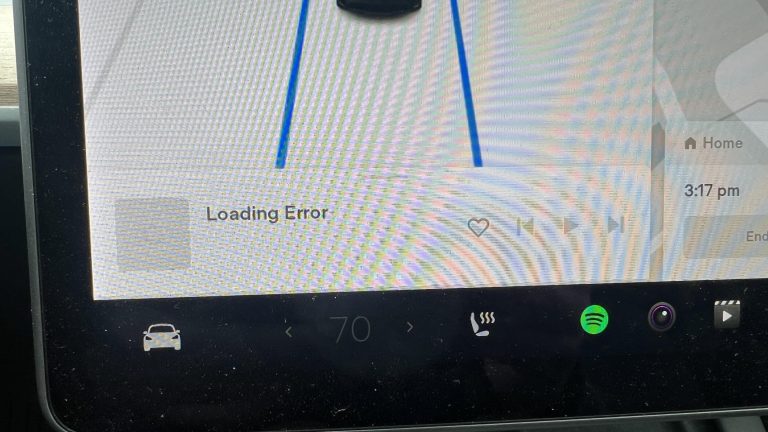
- Tap the car icon at the bottom of the touchscreen.
- Select Toybox.
- Tap Light Show.
If the USB is read correctly, you’ll see an option to select your custom show. The display shows “Light show ready” when the files are valid.
For deeper context on how Tesla’s systems work together, read how does a Tesla car work. And for garage automation fans, check out does Tesla have Homelink — it pairs nicely with an outdoor light show setup.
How to Safely Exit Before Playback
Exit the vehicle before the show starts. All doors must be closed. The car won’t begin the sequence with a door open. If you’re driving a Model X, understanding how Tesla doors open can help you plan the exit.
The Tesla owner manual has official documentation on Toybox features and menu paths if you want the definitive reference.
Troubleshooting Tesla Light Show Download Problems
The show isn’t appearing? Work through this list.
Show Not Appearing in Toybox
- Verify the folder name is exactly
LightShow(capital L and S). - Confirm both files are inside the folder, not at the drive root.
- Re-check that the USB is formatted as exFAT or FAT32.
- Try a different USB port — the glovebox port is most reliable.
Audio or Sequence File Missing
Tesla won’t load a show if either file is missing. Open the LightShow folder and confirm both lightshow.fseq and lightshow.wav (or .mp3) are present. File count: exactly two.
USB Detection Issues
- Swap to a different USB drive — cheap drives sometimes fail to mount.
- Reformat the drive completely before trying again.
- Avoid USB hubs or extension cables.
If issues persist, do Teslas have windshield wipers and other Tesla support articles show the kind of troubleshooting documentation available at Tesla’s official support pages — the same approach applies here.
Tips for Managing Multiple Custom Light Shows
You can only run one show at a time from the USB drive. Plan accordingly.
On your computer, keep every downloaded show in a clearly labeled folder: Song Name – Artist. When you want to swap shows, just copy the new pair into the LightShow folder and delete the old ones.
If you want to create your own show, xLights downloads is the free sequencing tool the Tesla community uses. It’s advanced but well-documented.
Tracking which shows you’ve tried and liked helps if you share a car. And for the bigger picture on ownership value, it’s worth reading do Teslas depreciate to understand your investment alongside all these fun features.
FAQ About Tesla Light Show Downloads
Can you use any Tesla model?
Yes — Model S, Model 3, Model X, and Model Y all support custom light shows, provided the firmware is version 2022.4.5 or newer.
Do files need matching names?
Yes. Both files must be named lightshow (lowercase) with their respective extensions. Any variation breaks the show.
What folder name is required?
Exactly LightShow — capital L, capital S, no spaces. This is non-negotiable.
Can you store multiple shows on one drive at once?
No. The LightShow folder holds one active show pair at a time. Store extras on your computer and swap as needed.
Where’s the safest place to download shows?
Tesla Light Show Sharing and the Tesla Light Show site are the two most trusted community sources.
Conclusion
The process comes down to five steps: find a show, format your USB drive to exFAT, create the LightShow folder, drop in both files with the correct names, and launch from Toybox. Every failure point ties back to folder name, filename case, or drive formatting.
Start with one downloaded show from Tesla Light Show Sharing, follow the folder structure exactly, and you’ll have it running on the first try. Once that works, building your archive and swapping shows becomes second nature.